
Access your Data |  | by Eddie Mijares |
List boxes are often used to allow a user to select an item from a group. Some lists can be viewed from a variety of perspectives. For instance, one salesperson may want to select items from an Item Master file based on Item Code while another salesperson may want to select items based on Item Description. This multidimensional view of data also occurs for Customer Codes and Names, Vendor Codes and Names, Employee Codes and Names and many other types of tables. Unfortunately, some Access developers design their list boxes with only one view in mind.
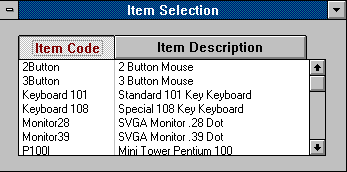
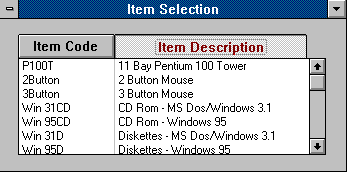
It is relatively simple to develop a list box which may be viewed based on various sort orders. Let's begin with a 2 column list box. Column 1 will contain the Item Code and column 2 will contain the Item Description. Next, you will need 2 queries. The first query will view the Item Master in Item Code sequence. The second query will view the Item Master in Item Description sequence. Now we will need a method of selecting which query to use. There are two options. The first option would be 2 command buttons which would be placed over the selected list box columns. When we clicked on a command button the list box would be sorted in its order. However, normal command buttons do not indicate which button had been pressed or selected. A better option may be to use an option group and two toggle buttons. While this is a little more complicated solution, it is much more elegant and user friendly. Toggle buttons, as their name implies, are toggled between up and down. When toggle buttons are placed in an option group they will automatically untoggle the last selection as a new selection is made. Therefore, they will give the user a visual cue of which sort sequence is currently in effect. To create an option group, first select the option group button tool which appears as a box with XYZ on the top. Next, click on the form and drag out a rectangle. Now, you should select the toggle button tool which appears as two buttons. Simply draw two buttons within the option group rectangle. Set the option value property for each button to a different number. In our case, I set the Item Code toggle button to 1 and the Item Description toggle button to 2. In order for your buttons to appear directly over their columns, I typically set the width of each toggle button to the width of each column in the list box. After you have placed the toggle buttons where you want them, you are now ready to make them change the sort sequence of the list box.
Luckily, the option group control has an After Update event which can be used to set the sort sequence. After a toggle button is pressed, the option group's value is set to the option value of the button. Then, the After Update is triggered for the option group. All we need to do is evaluate the option group value and set the row source for the list box to the appropriate query. However, setting the row source of a list box will not cause it to change. We must issue a re-query method for the list box in order for its contents to be redisplayed in the new sort sequence.
This is the code needed in the After Update subroutine.
Sub Sort_Option_AfterUpdate ()
If Me![Sort Option] = 1 Then
Me![Item List].rowsource = "qryItemCode"
Me![Item List].Requery
Else
Me![Item List].rowsource = "qryItemDescription"
Me![Item List].Requery
End If
End Sub
This code will cause our list box sort order to change based on the selected toggle button. This all works fine, except when the form is first displayed neither toggle button is selected. We can cause a particular toggle button to be selected by either setting the default value for the option group or by entering the following code.
Sub Form_Load ()
Me![Sort Option].value = 1
End Sub
Hopefully, you can now begin to give your users greater flexibility and functionality in their list boxes. As always, however, once you give them this functionality they may begin to expect it for all of your list boxes.
 |  |
Eddie Mijares, a HAL-PC member, is the president of Major Systems Corp., which is engaged in MS Access and VB consulting.
This page is best viewed using Netscape ver. 2.0b5 or higher. Designed by Meredith Foster. E-mail me at webmaster@hal-pc.org with any comments you have and tell me what you want to see here.
Back to the User Journal Home Page